
We divide the Dstny Softphone into four zones:
Zone 1: Status field
Want to change your status? Click on your current status and select a new one from the menu.
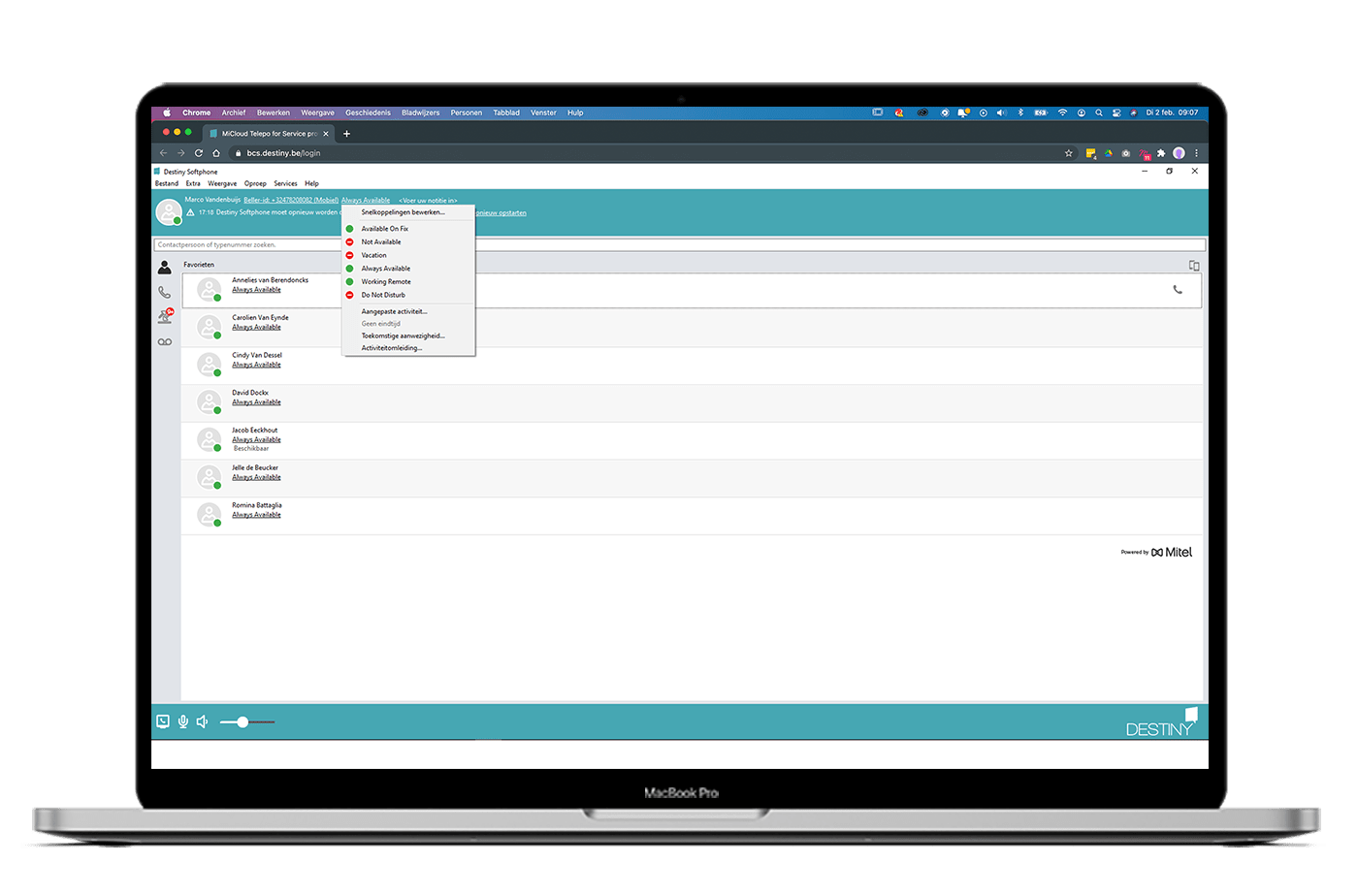
See how to change your activity
Zone 2: Search bar
Here you can:
-
Enter the name of a contact you want to call. The Softphone will search for all matching contacts.
-
Enter a new phone number.
See how to make a call
Zone 3: Contacts – calls – call log
Contacts
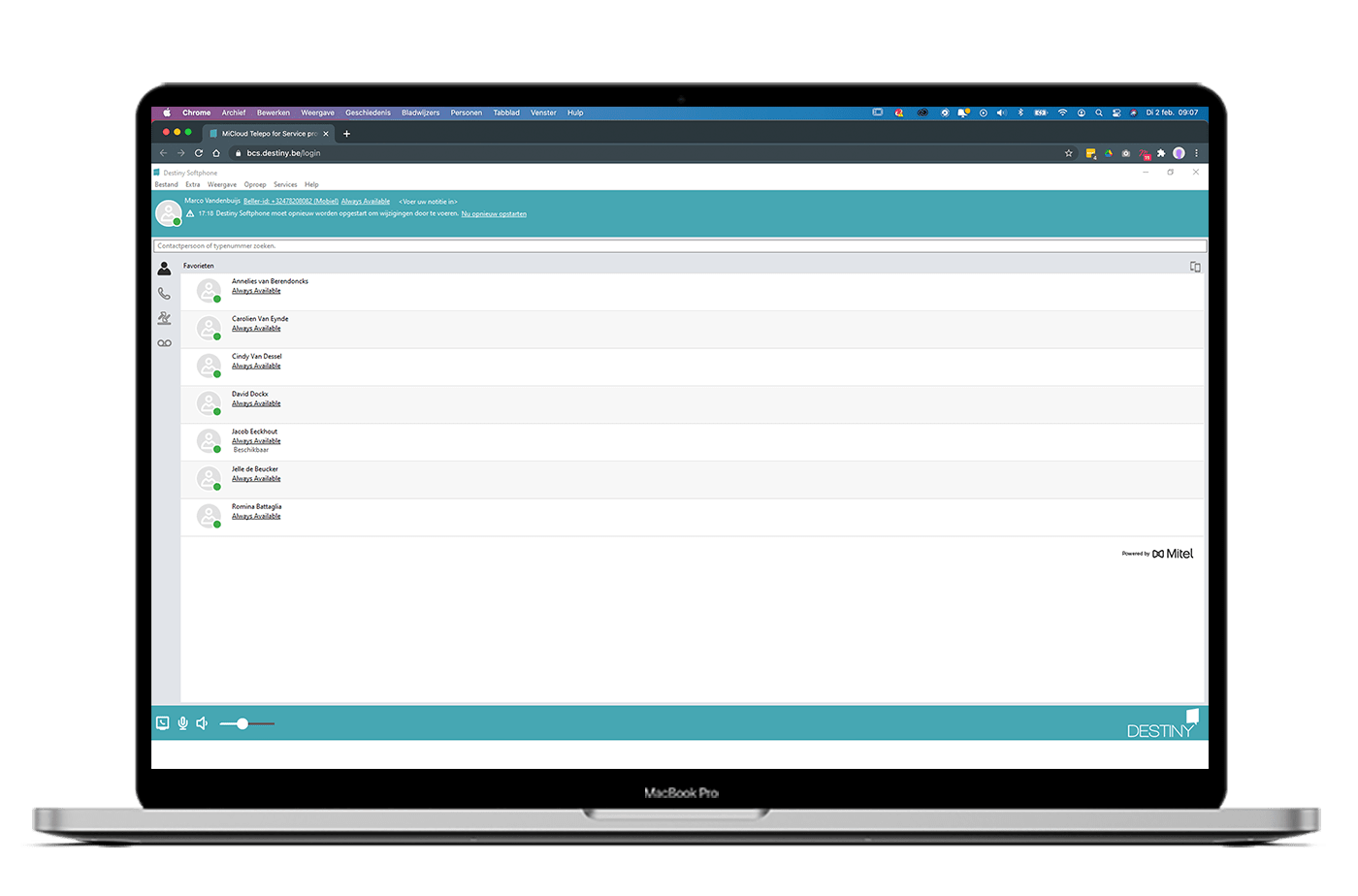
In this tab, you’ll find a list of all your contacts. You can also immediately see the status of your colleagues.
-
Click the phone icon next to a name to call a contact directly.
-
Click the chat icon to start a chat session.
Calls
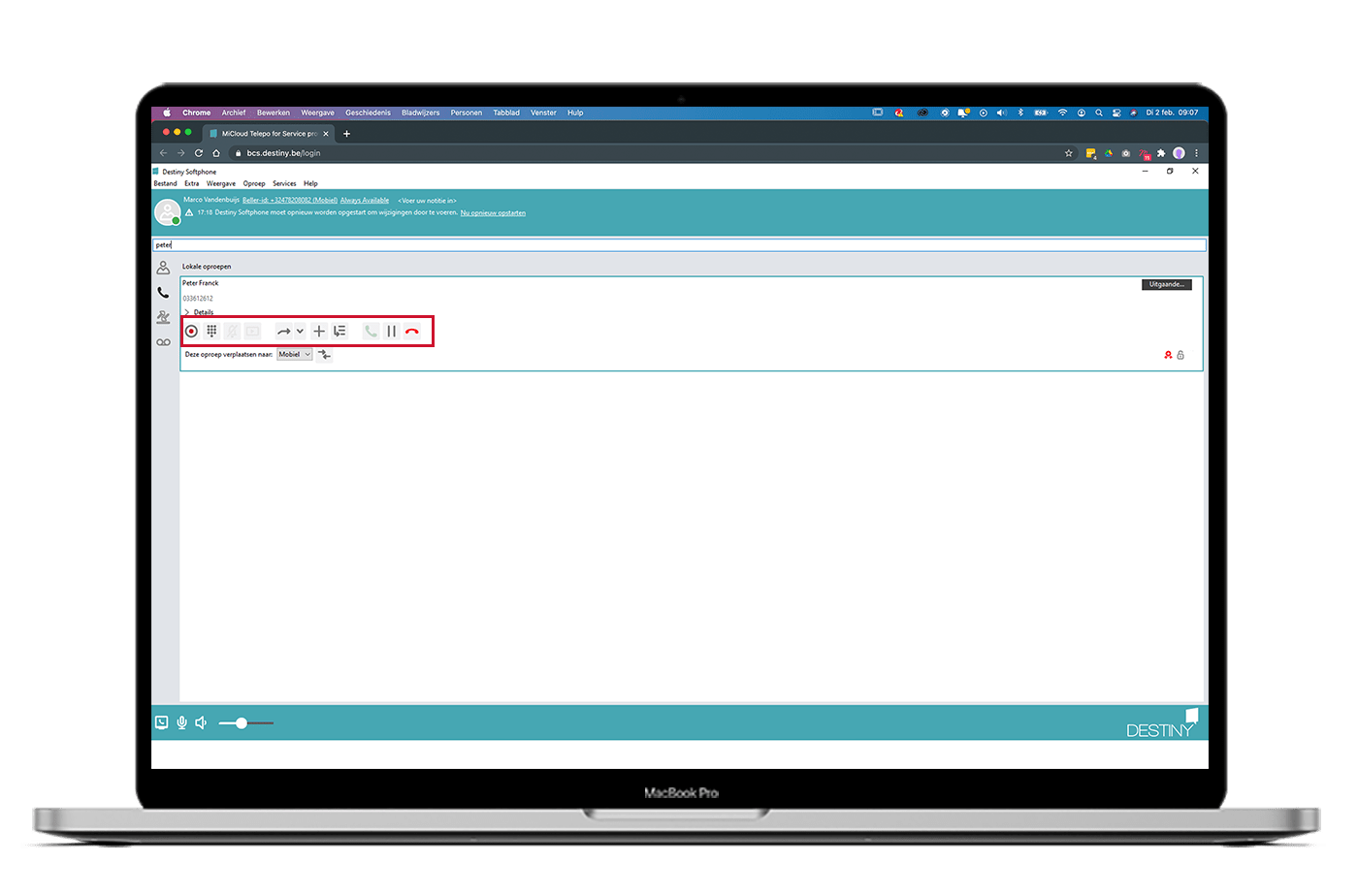
Here you can manage your active calls.
-
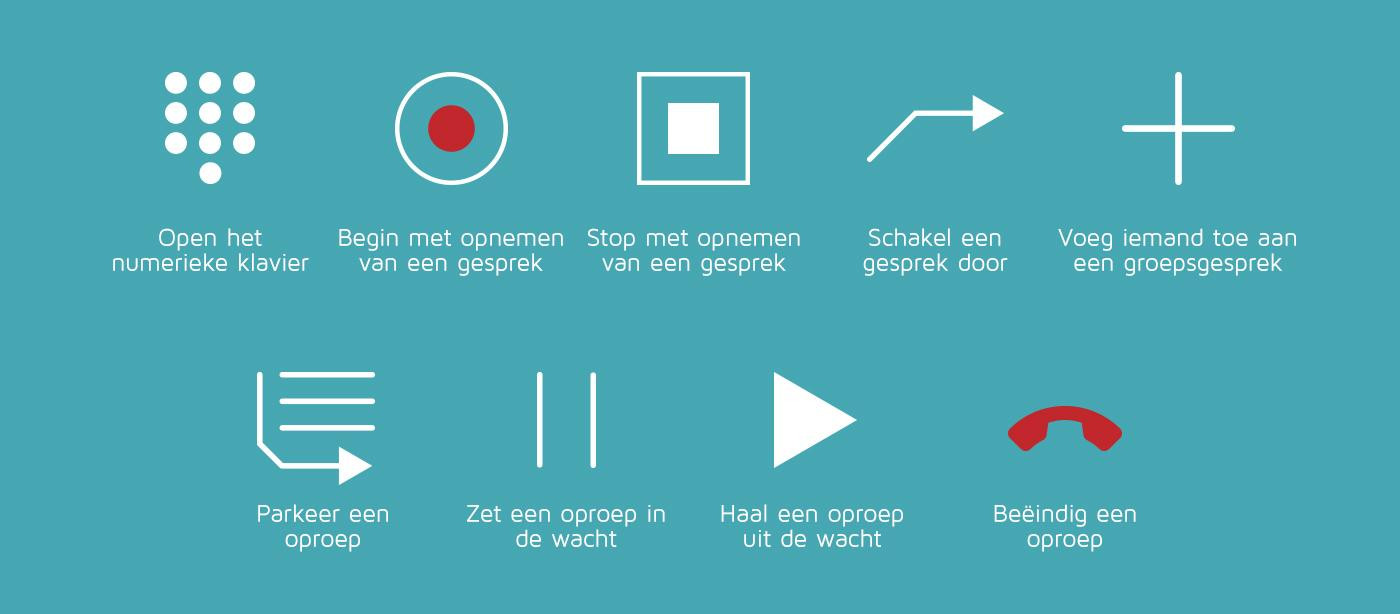
Use the icons at the bottom of the screen to answer, hold, or end a call.
Want to transfer a call?
-
During your active call, start a new call by selecting a contact from the list or using the dial pad. Your current call will automatically be placed on hold. Wait until the new contact answers.
-
Once the new contact answers, click the ‘Transfer call’ icon. An extra arrow will appear next to your other call.
-
Click ‘Transfer’ in the third-party call window.
Call log
Here you get an overview of your calls:
-
All calls: in the ‘All’ tab
-
Missed calls: in the ‘Missed calls’ tab
-
Voicemails and recorded calls: in the ‘Inbox’ tab

Zone 4: Audio settings
In this zone, you can:
-
Turn your microphone on or off
-
Change your audio profile
-
Adjust the volume using the slider
See how to switch devices