
Calling is now done with your Dstny Softphone. This is not a traditional desk phone, but software installed on your computer — hence the name ‘softphone’: a combination of ‘software’ and ‘phone’. And as you’ll quickly notice, a softphone comes with many advantages.
Before you can start making calls, you first need to install the Softphone on your computer. Do you already have your own username and password? If not, please contact your IT administrator first.
Don’t forget! You need administrator rights on your computer to install software.
How to install
-
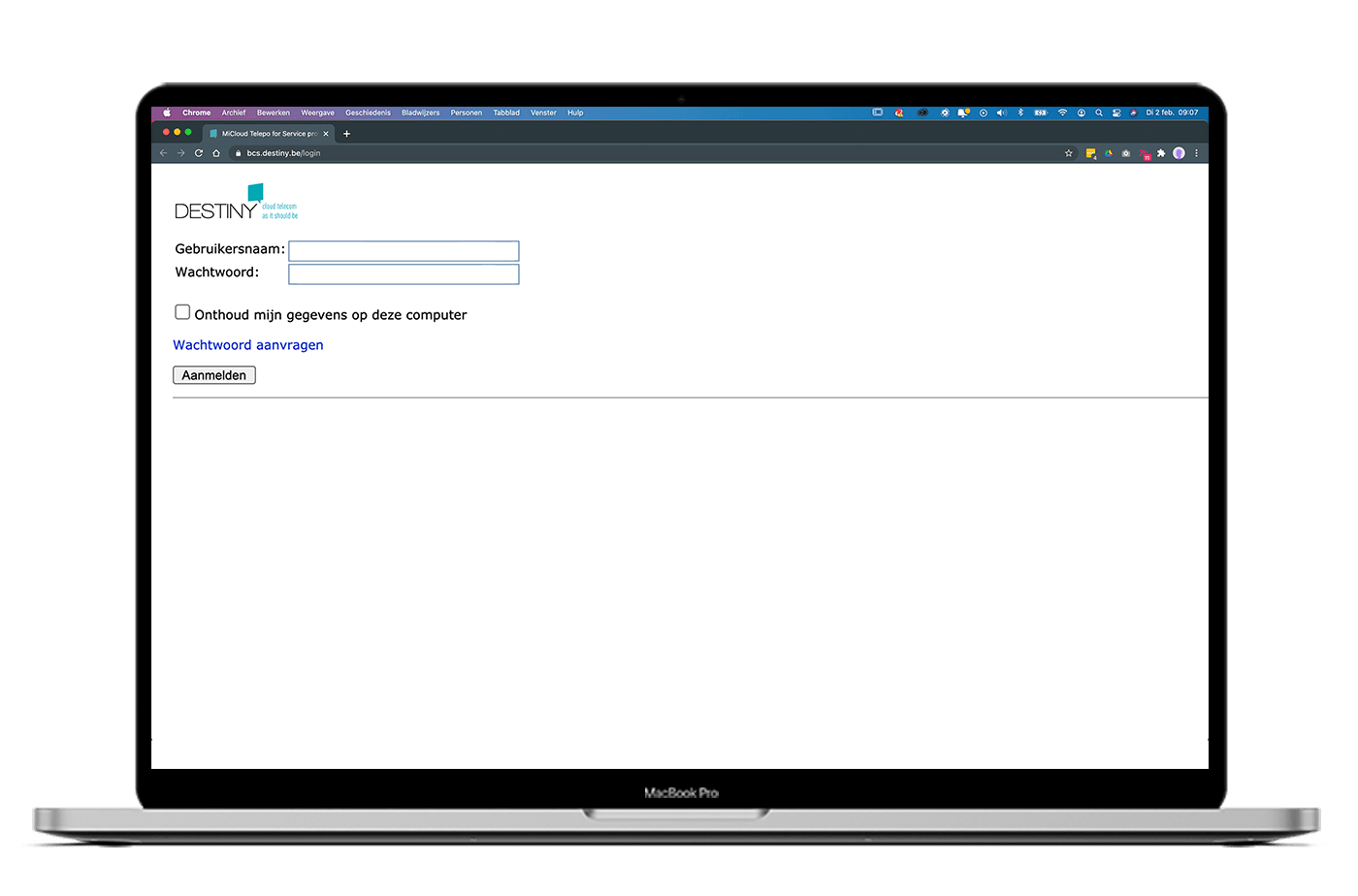
Go to https://bcs.destiny.be and log in with your username and password.
-
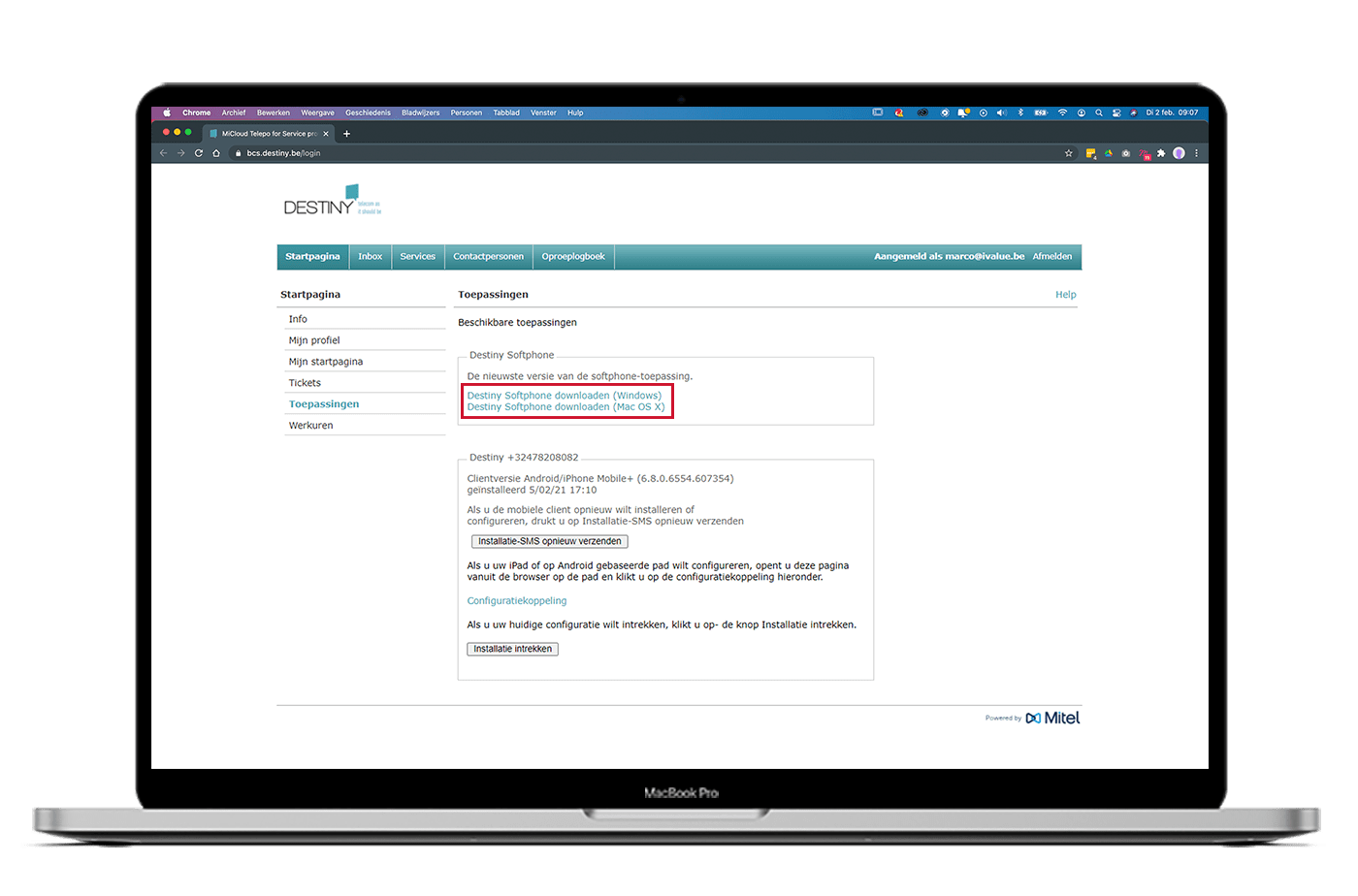
Navigate to the ‘Home’ tab and click on ‘Applications’.

-
Download the Softphone by clicking the link.
Depending on your browser, you can either open the file immediately or save it first.
-
Click the downloaded file softphone.exe and install it using the setup wizard.
-
Installation complete? Open your Dstny Softphone. You will now go through another setup wizard. Click ‘Next’.
-
The wizard will ask for your server settings. Enter the following:
-
Server URL: https://bcs.destiny.be
-
User ID: your username
-
Password: your password
-
Skip the next two steps. We will complete them once your headset is connected.
-
Your Dstny Softphone is now ready to use. You’re all set to start calling!
Download the Dstny Softphone
Watch this video to see how to download your softphone